Deep Dive into building Chatbots using Amazon Lex
Overview: This guide explains how to build AI chatbots using Amazon Lex and AWS Lambda to create intelligent conversational experiences for enterprise applications. By combining Amazon Lex's natural language understanding with AWS Lambda for backend processing, organizations can automate customer interactions, streamline support workflows, and deliver scalable chatbot solutions on AWS. Amazon Lex provides natural language understanding (NLU) and automatic speech recognition (ASR) for voice and text.
Let’s take a look at the Chatbot Technology and AWS Service used in this blog:
What is Chatbot Technology? Chatbot is a service or tool that you can communicate with via chat interface. Chatbot understands what you are trying to imply and replies with a relevant message or directly completes the desired task for you.
What is Amazon Lex Bot? Amazon Lex chatbot development services help organizations build intelligent voice and text assistants with automatic intent recognition, natural language understanding, and seamless AWS integration. Businesses use Amazon Lex to automate customer support, internal help desks, appointment booking, and self-service workflows across web and mobile applications. Amazon Lex is a fully managed AWS service that enables conversational interfaces using voice and text.
Amazon Lex integration with AWS Lambda enables developers to execute business logic, validate user input, access databases, and connect chatbots with enterprise applications. This serverless architecture allows organizations to build scalable conversational AI solutions without managing infrastructure.
Building Chatbots using Amazon Lex: In this blog, we will be creating two chatbots “Loan Status” and “Banking Services”.
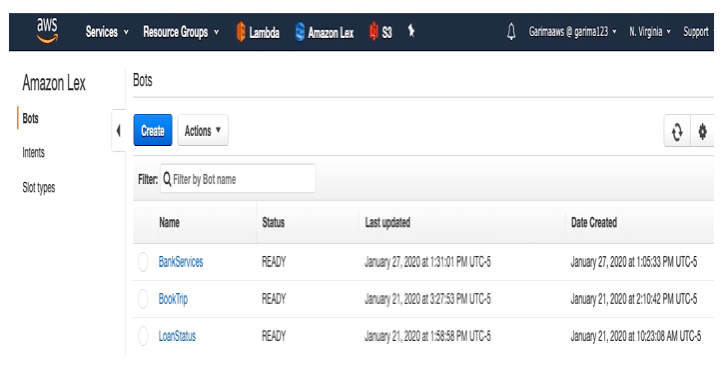
1. Build and Test “Loan Status” chatbot: In this module, we will build a chatbot “Loan Status” in Lex which would be used to handle information queries coming from customers and answer some of the customer’s questions checking the requirement to apply a loan, tracking their loan status and required documents to apply for personal loan.
Create a Lex bot: Use the Lex Console to create a bot named “Loan Status”. Fill all the details given below in the screenshot and click Create.

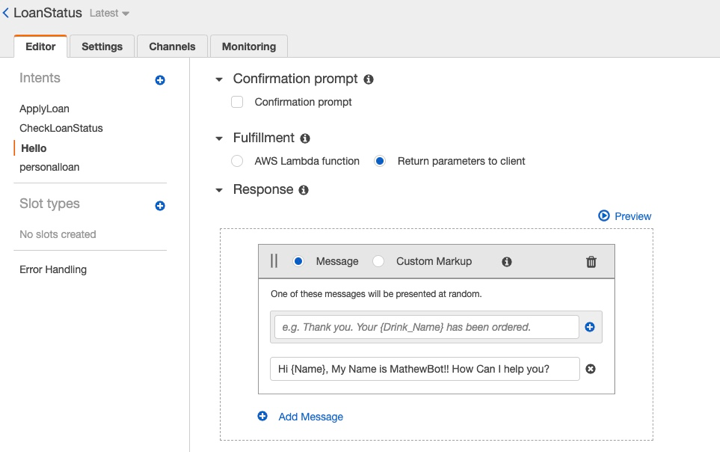
Create the intent: Let’s create our intent ‘Hello’ in the Lex bot.
Configure sample utterances: By providing sample utterances for a given intent, you can teach Amazon Lex different ways a user might convey an intent. Adding two sample utterances to the intent ‘Hi’ and ‘Hello’.
Configure Slots: Slots are parameters we define to capture inputs from our customers. In this example, the input parameter the bot needs in to fulfill the informational query by addressing customer using customer name.
Because there is a built-in slot for names, we will leverage it for this intent and configure a slot Name with built-in type AMAZON.GB.FIRST_NAME. And the Prompt would be a question asked by bot to get the customer name and store this name to the Name parameter in slot.
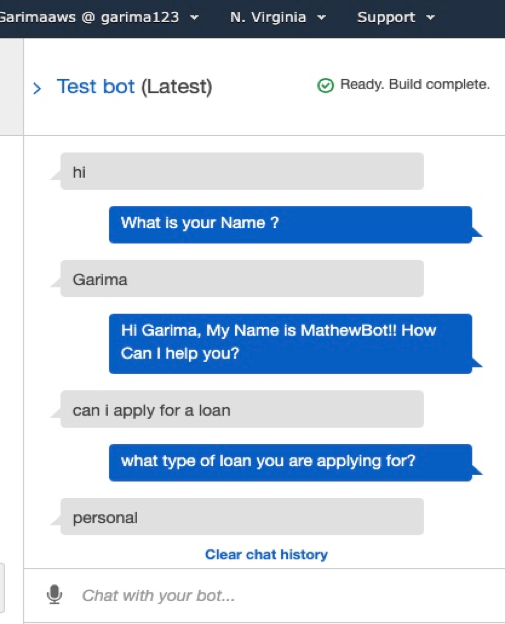
Here we have a Prompt ‘What is your Name?’

Once Customer will answer his/her Name it will store in the slot for further use and bot will call the customer by Name.
Here you can see after getting Prompt’s response from customer bot Response would be “Hi Name, My Name is Mathewbot!! How can I help you?” After writing the Response from chatbot we will save this ‘Hello’ intent.
Text Bot :
2. Build and Test “Bank Services” chatbot using Lambda: In this module, we will build a chatbot “Banking Services” in Lex using lambda which would be used to handle customer requests for fetching some personal details like their bank balance from their savings and current account.
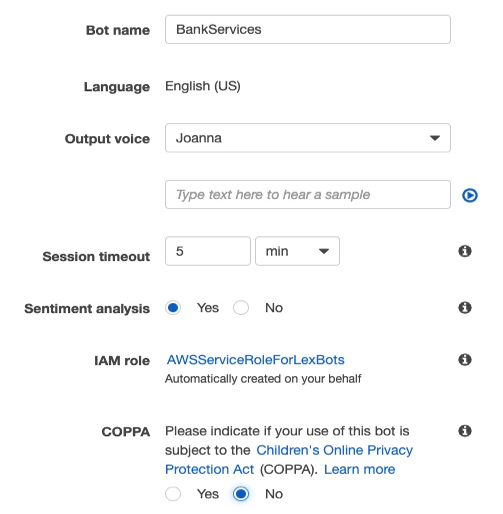
Create a Lex bot: Use the Lex Console to create a bot named “Bank Services”. Fill all the details given below in the screenshot and click Create.
Create the intent: Let’s create our intent ‘Check Balance’ in the Lex bot.
Configure sample utterances: Adding sample utterances to the intent:
· Can I check my bank balance
· how much money I have in my bank account
· check my bank balance
Configure Slots: In this example the bot needs in to fulfill the requested details by addressing requested bank account type and PIN Number to verify the account.
We will create a Slot type named account type and store two values (Current and Savings).
Then configure a Slot Name accounttype with created Slot type in the intent. And the Prompt would be a question asked by bot to get the type of loan customer wants to apply and store this name to the Name parameter in slot.
Here we have a Prompt ‘What type of account do you have Current or Savings?’
Because there is a built-in slot for four-digit number as PIN, we will leverage it for this intent and configure a slot Name PinNumber with built-in Slot type AMAZON.FOUR_DIGIT_NUMBER.
Here we have a Prompt ‘What is your PIN number for your accounttype account?
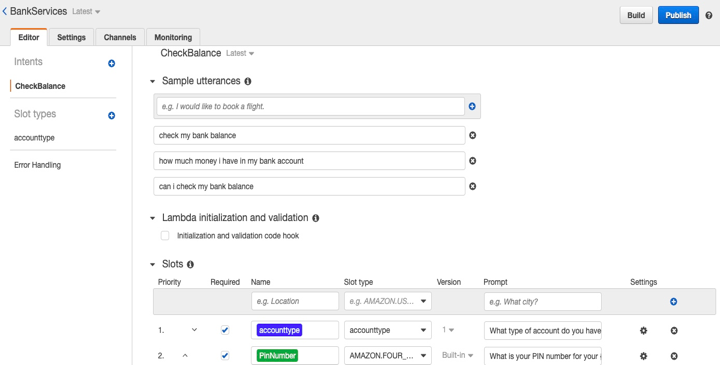
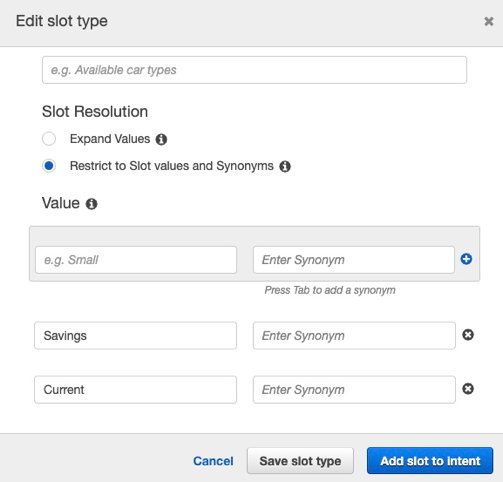
Once Customer will fill their account type and Pin Number they will be stored in the slots for further use.
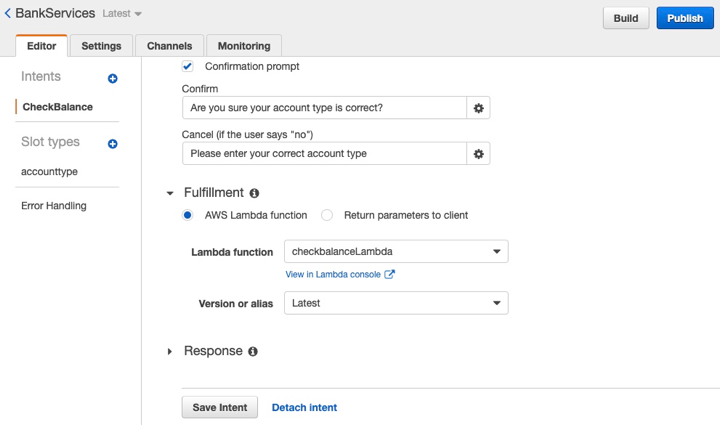
Here you can see after getting Prompt’s response from customer bot uses a Confirmation Prompt which is used to ensure all the details by customers are correct.
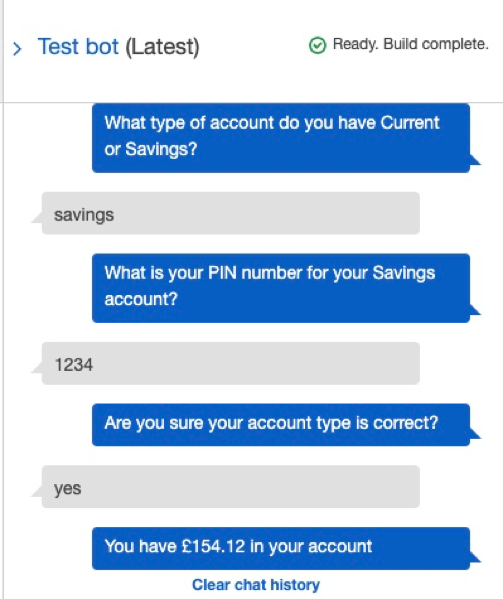
To confirm Confirmation Prompt ‘Are you sure your accounttype is correct?’ If customer respond with ‘yes’ then a lambda function named Check BalanceLambda will be triggered where we have provided the python code to get all the details customer is asking for.
To cancel Confirmation Prompt ‘Please enter your correct account type’.
After writing the Response from chatbot we will save this ’Check Balance’ intent.
Text Bot :
Summary: In this blog we have seen how to create a chatbot using Aws services. In my future blogs I will be covering more features of chatbots as well as it’s integration and connection with websites and other AWS Services.